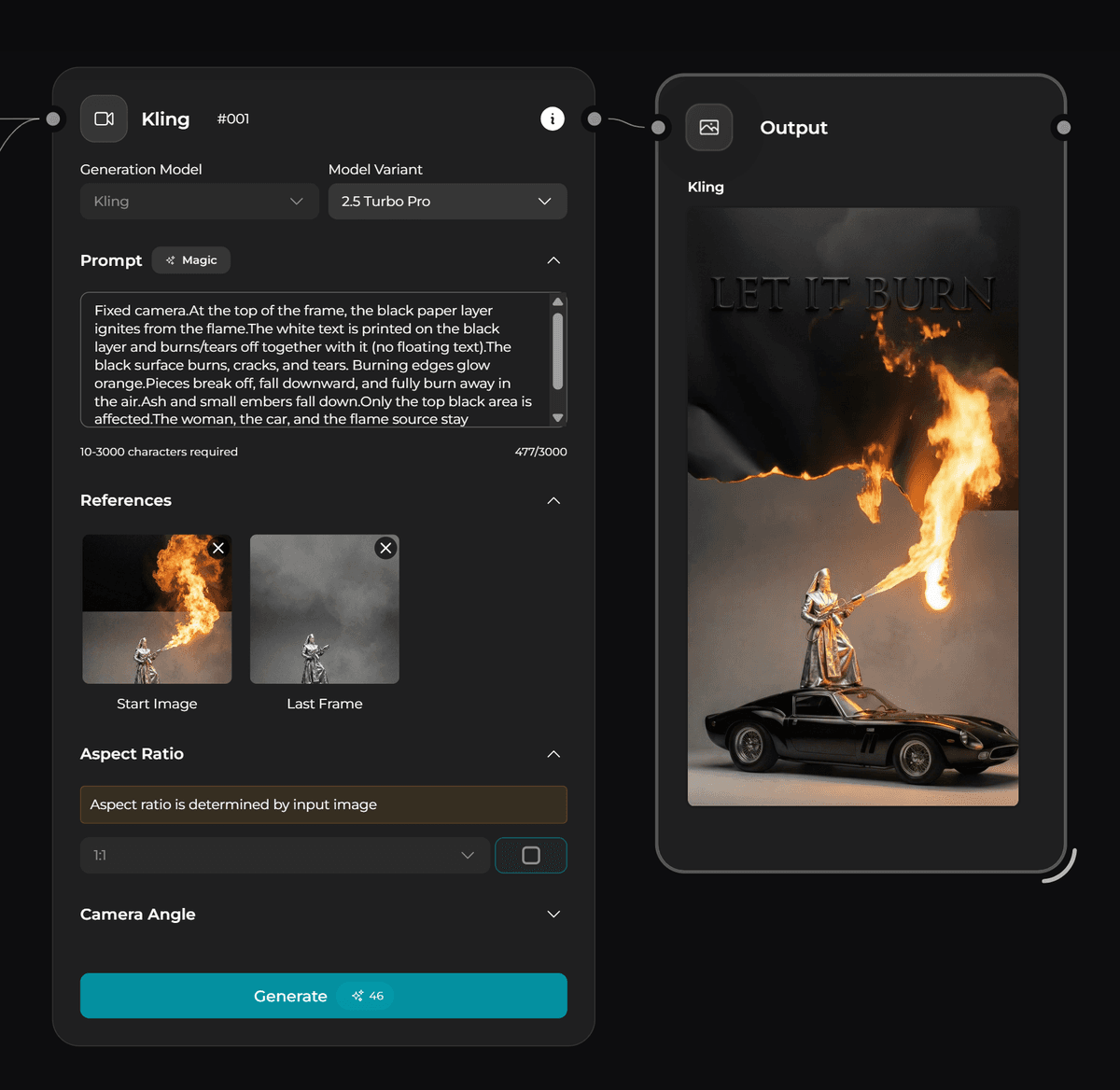
Fire Workflow Guide
This approach can be used for brand promo videos where replacing a single detail completely changes the message. It works just as well for original content designed to stand out in crowded social feeds — or even for a creative, unexpected birthday greeting for your grandmother.
The key idea is to clearly demonstrate a structured sequence of actions that helps raise the overall quality and production level of content on social media. You can recreate this effect anywhere, but it's naturally most efficient and convenient to do it inside the 8Frame platform.
Setup and Image Generation — Nano Banana Pro
Use the Nano Banana Pro model with a 16:9 aspect ratio and 2K resolution. Attach your reference images — both a face reference (if needed) and a car reference.
Prompt used:
“On the roof of the car stands a realistic woman with a model-like appearance. She is wearing a silver ceremonial priest outfit — metallic silver fabric, a long structured garment with realistic folds and natural weight. On her head is a matching silver ceremonial headdress. In her hands, she holds a surreal yet realistic silver flamethrower, made of polished and brushed silver metal, featuring an intricate and unusual design that remains physically believable. Cinematic lighting with realistic reflections on the car paint and silver metal surfaces. Firelight subtly illuminates the woman, the car roof, and nearby elements. Photorealistic, dramatic, and grounded in reality.”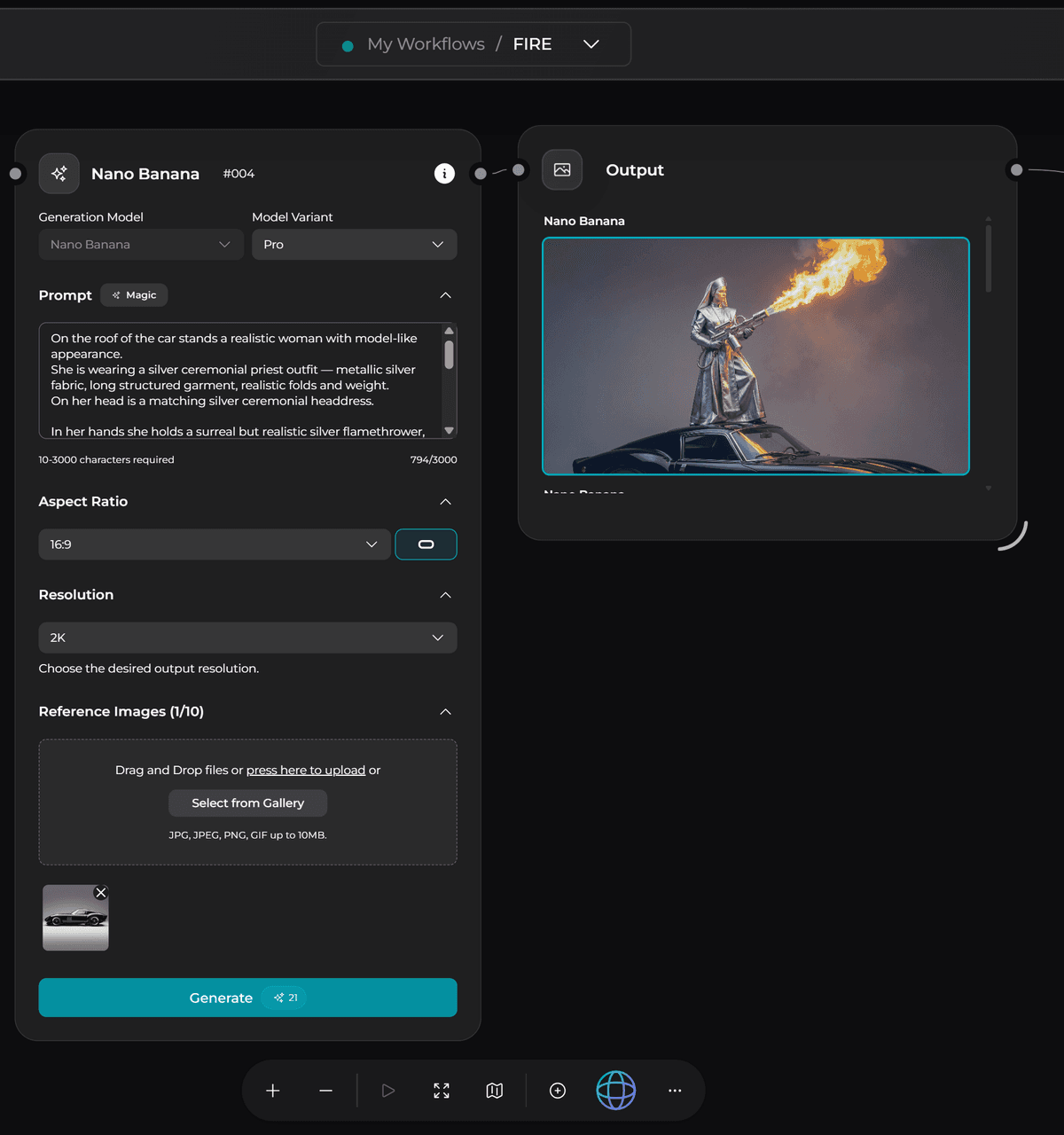
Frame Expansion — Nano Banana Pro
Use Nano Banana Pro with 9:16 aspect ratio and 2K resolution. Add the previously generated image as a reference.
Prompt used:
“Expand the space upward in the same visual style.”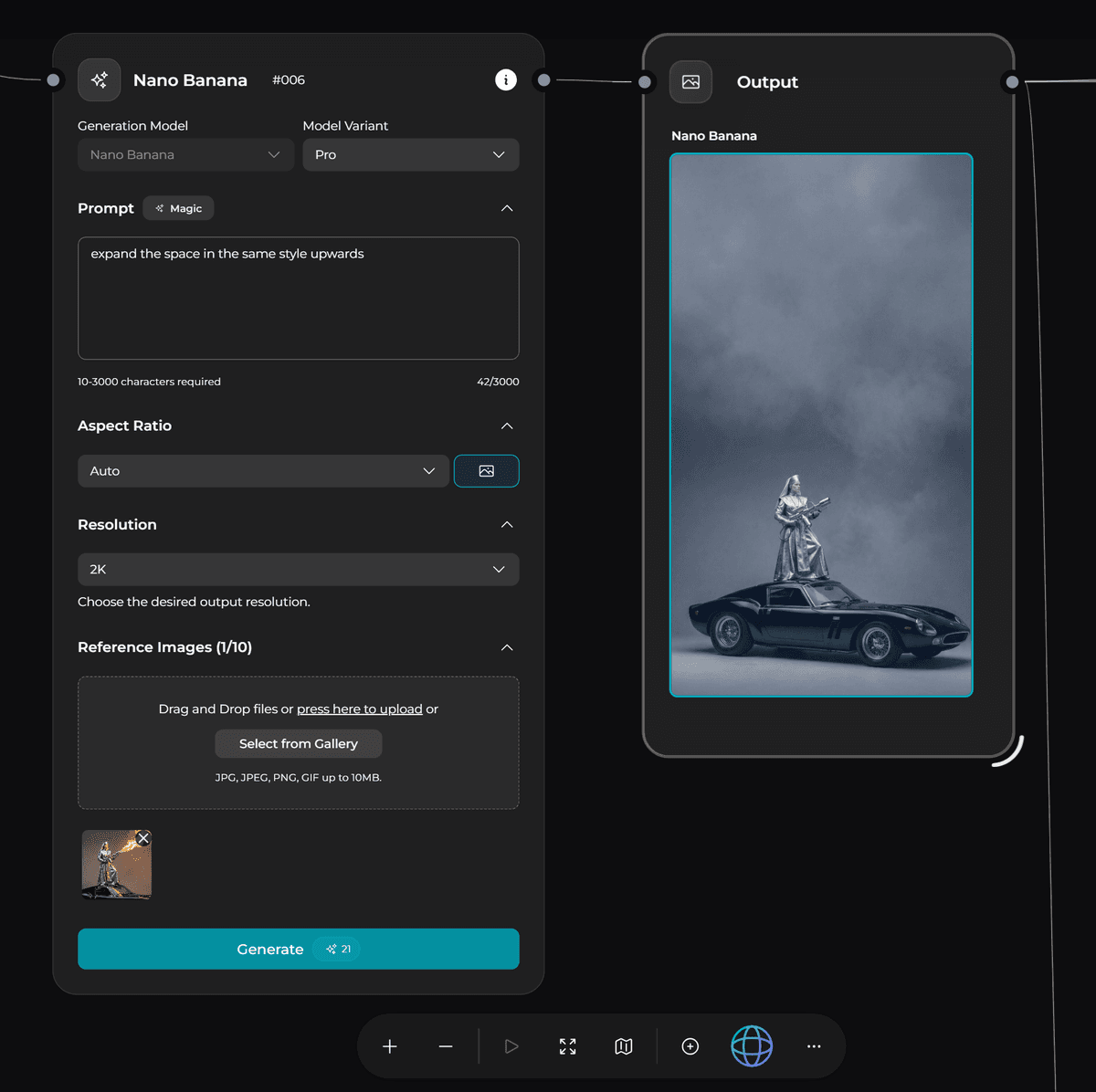
Black Mask Preparation
Open the resulting image in any photo editing software. Remove the upper portion of the frame and fully fill that area with solid black, or simply apply a black color fill to the entire upper section.
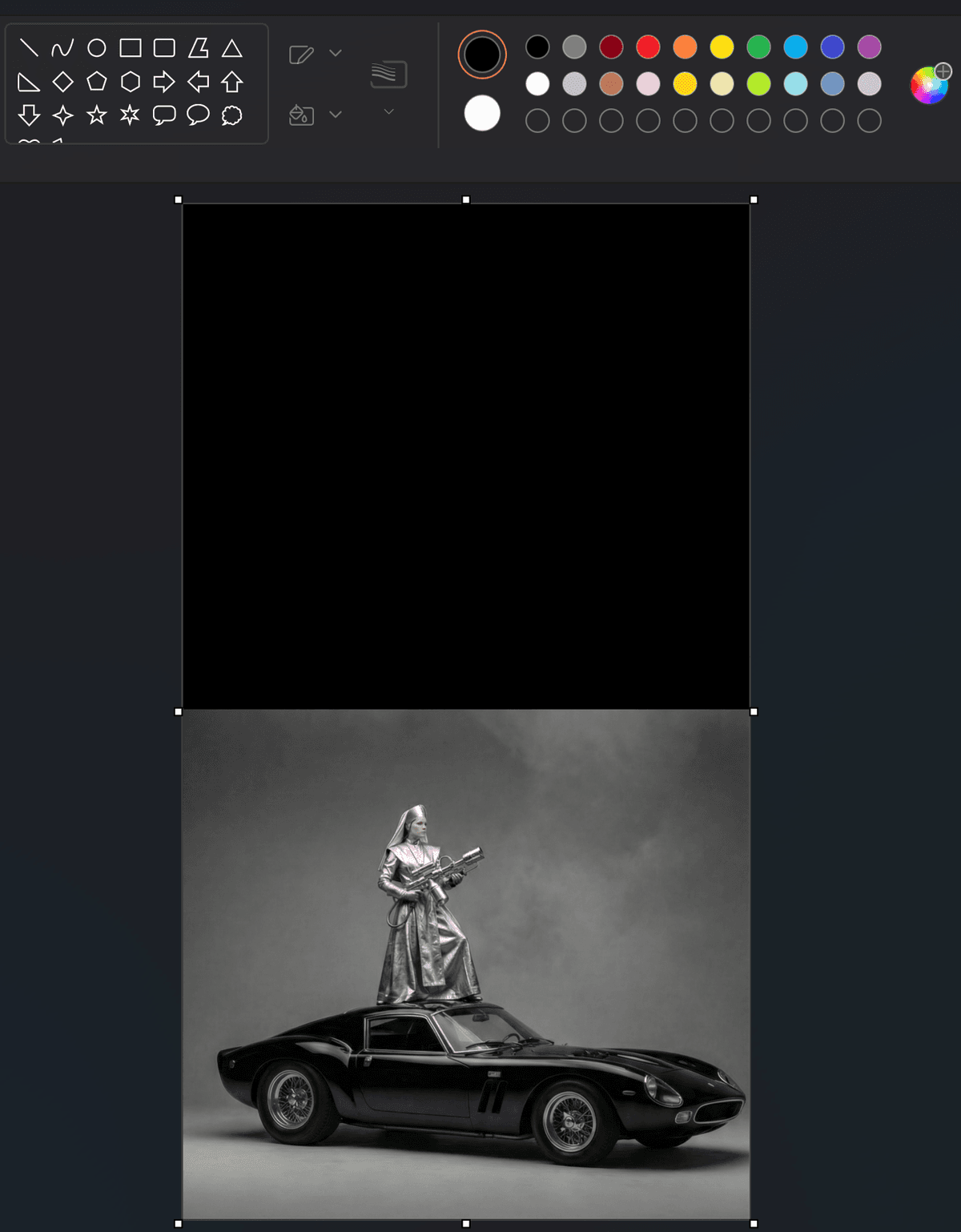
Refinement — Nano Banana Pro
Return to Nano Banana Pro and refine the resulting image. Use 9:16 aspect ratio and 2K resolution.
Prompt used:
“Without changing the environment or any existing details, add realistic fire flames bursting from her flamethrower. The flames should partially extend into the black area at the top of the frame.”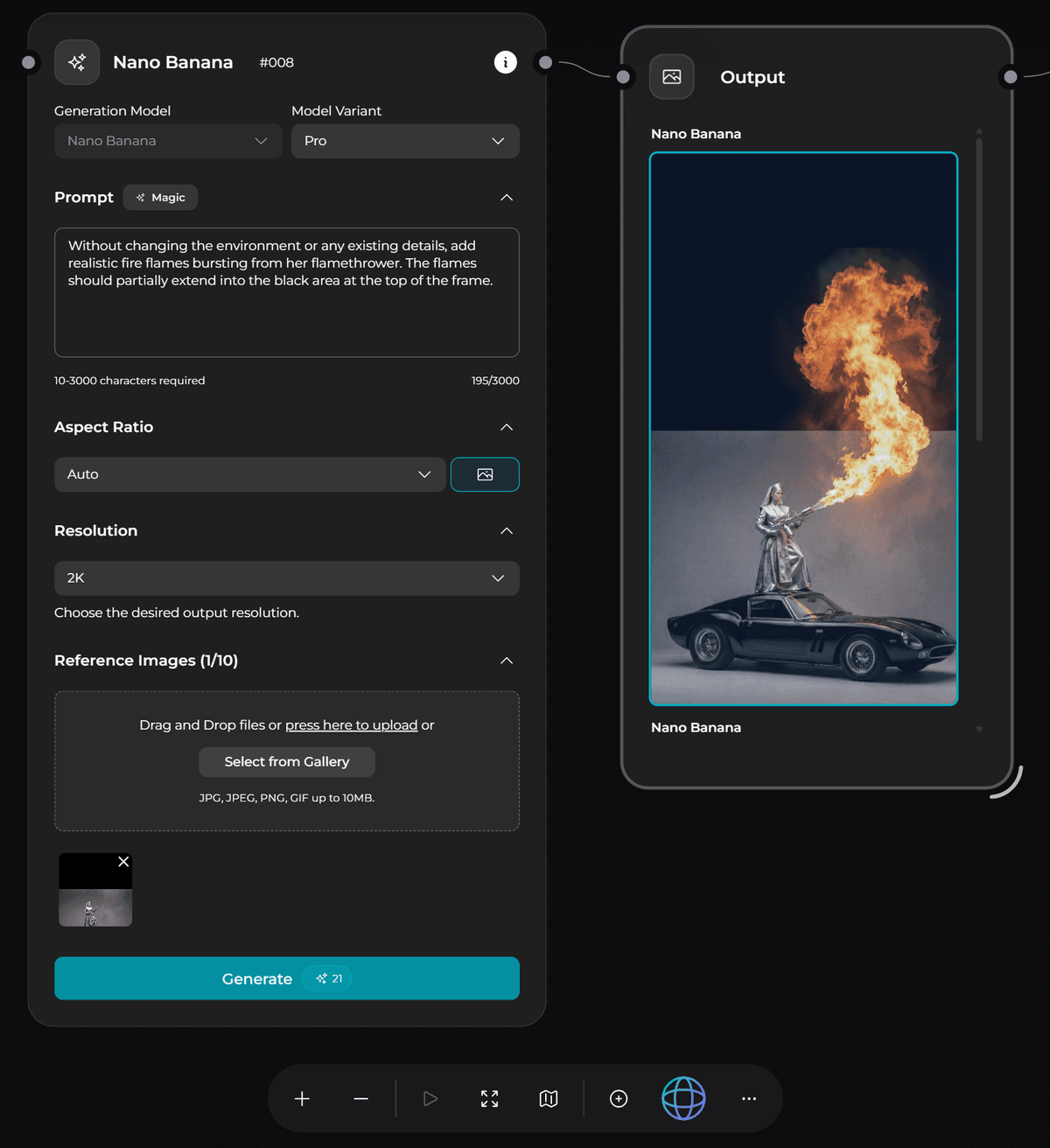
Typography Integration — Nano Banana Pro
Use the resulting image once again as a reference in Nano Banana Pro. Set the aspect ratio to 9:16 and resolution to 2K. Add text in the black area at the top of the frame.
Prompt used:
“Add the text 'LET IT BURN' in the upper black area. Typography: cinematic Roman-style serif font, Trajan-like, all caps. The text is embossed into the black surface and is the same black color as the material: raised lettering created only through relief and shadows, subtle highlights along the edges, soft, natural shadow around the letters. The text is part of the surface itself, not painted or overlaid.”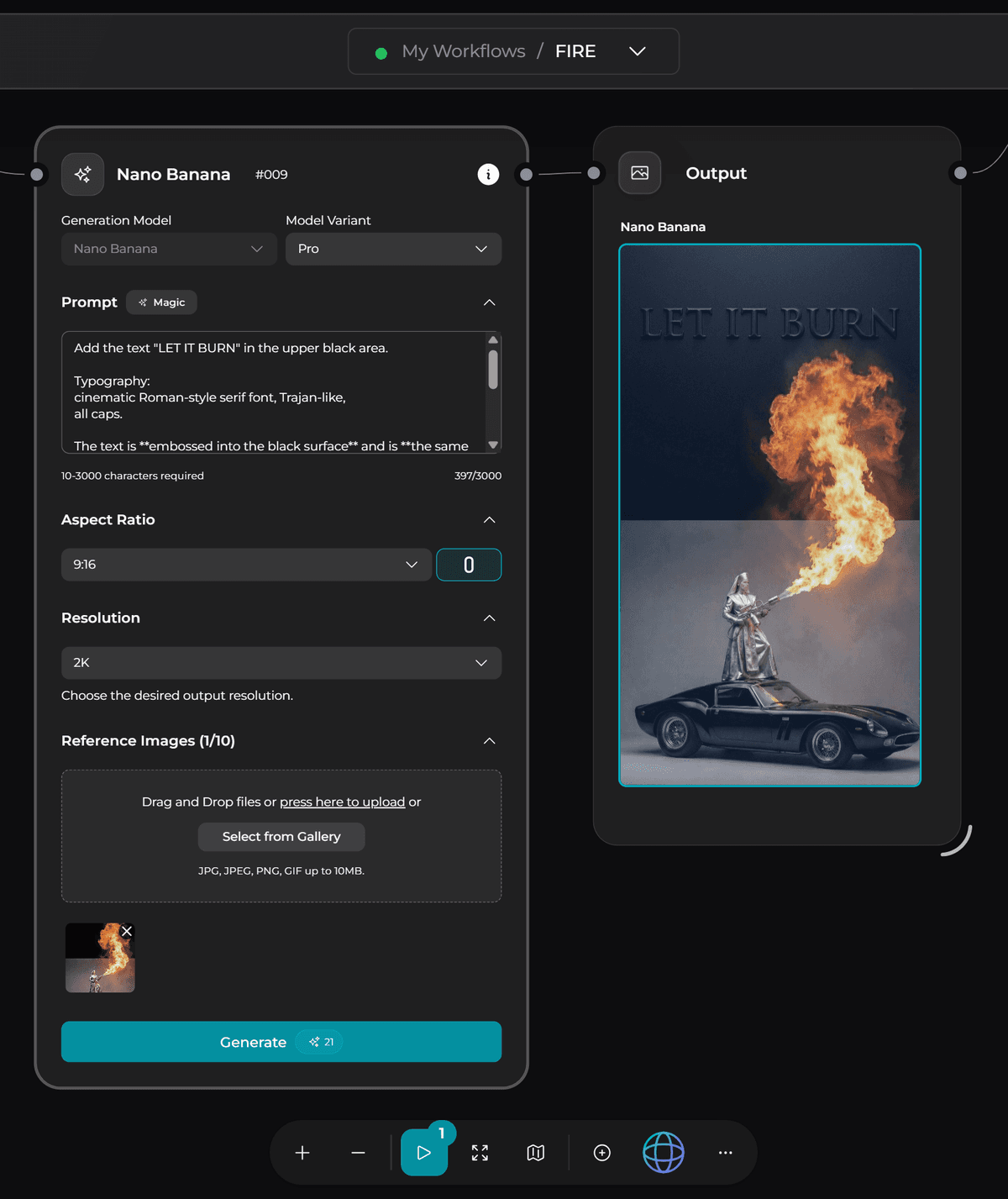
Animation with Keyframes — Kling 2.5 Turbo Pro
Use keyframes for animation in Kling 2.5 Turbo Pro. Keep the camera fixed and animate only the upper black layer.
Prompt used:
“Fixed camera. At the top of the frame, the black paper layer ignites from the flame. The white text is printed on the black layer and burns and tears off together with it (no floating text). The black surface burns, cracks, and tears apart. Burning edges glow orange. Pieces break off, fall downward, and completely burn away in the air. Ash and small embers fall down. Only the top black area is affected. The woman, the car, and the flame source remain completely unchanged. Realistic fire behavior and natural gravity.”